Open Word to PDF Converter
Convert DOC and DOCX files into high‑quality PDFs.
Start Converting
How to Convert Word to PDF with AtlasConvertPDF (Step-by-Step Guide)
How to Convert Word to PDF with AtlasConvertPDF (Step-by-Step Guide)
Convert DOC and DOCX files into high-quality PDFs. Transform your Word documents into professional, universally compatible PDF files that preserve your formatting, fonts, and images perfectly across all devices and platforms.
START CONVERTINGPDF is the gold standard for document sharing. It keeps your layout, fonts, and images intact on every device—whether your recipient uses Windows, Mac, iOS, or Android. Your resume, proposal, or school paper will look polished, print correctly, and share easily without compatibility issues.
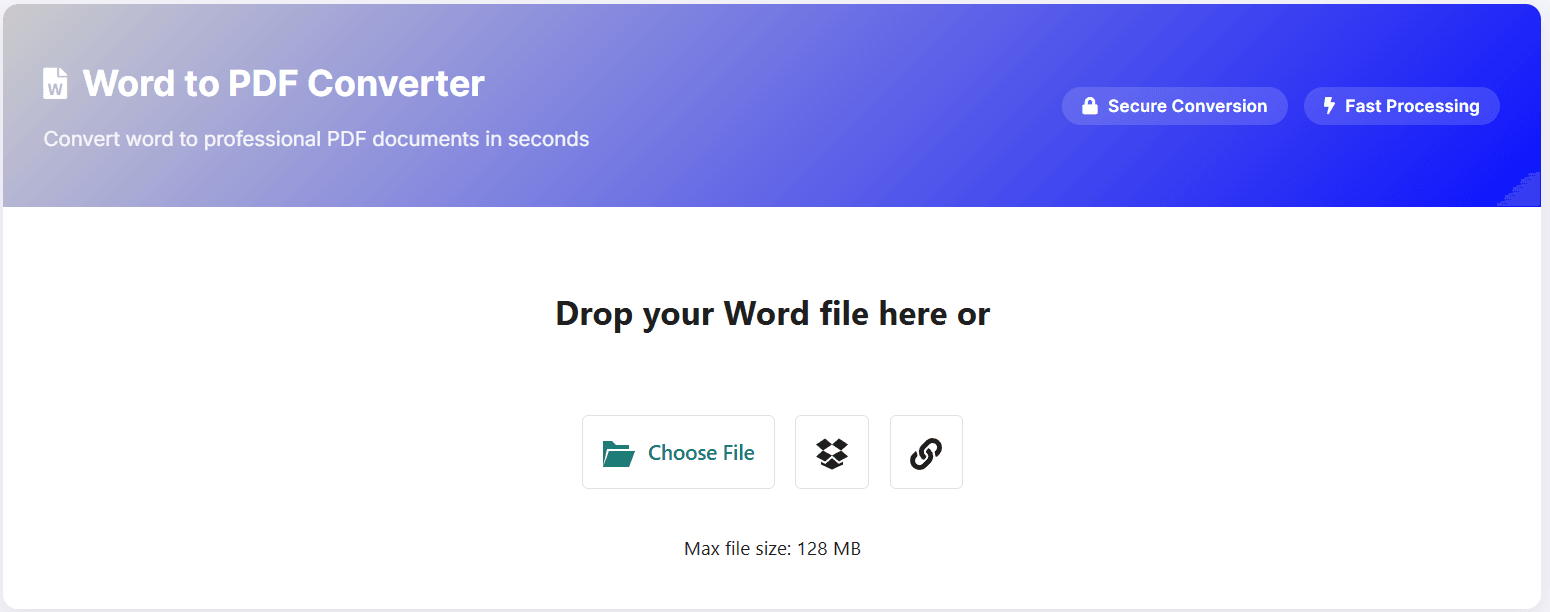
The interface is clean and intuitive: a large drop zone that says "Drop your Word file here or" followed by three upload buttons—Choose File, Dropbox, and Link. A note beneath shows the maximum file size (typically 128 MB). At the top-right, badges highlight Secure Conversion and Fast Processing to give you confidence in the tool.
Follow these four simple steps to transform your Word document into a professional PDF in seconds:
Navigate to atlasconvertpdf.com/tools/word-to-pdf.php. You'll immediately see the large upload area and three convenient input options ready for your file.
Choose one of the three modes below—Computer, Dropbox, or URL—to attach your .doc or .docx file. Pick whichever method fits your workflow best.
Click the Convert button (or wait if it starts automatically). The powerful conversion engine processes your document in just seconds, maintaining all formatting and quality.
Hit Download to save your professional PDF. Open it to verify that fonts, images, page breaks, and layout look pixel-perfect.
AtlasConvertPDF offers three flexible ways to upload your Word documents, making it easy no matter where your files are stored:
Click Choose File and select your Word document—or simply drag and drop it into the large upload area. This is the classic method, perfect for files you've just edited locally on your device.
Click the Dropbox button, sign in if prompted, and pick your file directly from your cloud folders. No need to download first—access your documents straight from the cloud.
Click the Link icon and paste a direct URL to the .doc/.docx file. Ideal when someone shares a file link and you want to convert it without downloading to your device first.
Follow these expert recommendations to ensure your converted PDFs look flawless:
Project-Proposal-2025.pdf or Resume-John-Smith.pdf for a professional touch and easy organization.Encountering problems? Here are quick solutions to the most common conversion issues:
Re-save your document as .docx, embed custom fonts, and simplify complex elements like macros, embedded objects, or advanced Word features that may not translate to PDF.
Replace low-resolution pictures with higher-quality versions (300+ DPI recommended). Check Word's image compression settings under File → Options → Advanced → Image Size and Quality.
Try a different upload mode (switch between Computer, Dropbox, or URL). Verify the file link is direct to the actual file, check your internet connection stability, and ensure the file size is within the limit.
Compress images in Word, remove unnecessary embedded media, or split your document into multiple smaller files. You can also try saving as a newer .docx format which often has better compression.
Start converting your .doc and .docx files to professional PDFs in seconds. No registration, no software installation—just fast, secure, and reliable conversion.
Open Word to PDF Converter✨ Convert Word to professional PDF in just a few clicks